Watch View: the EVE Frontier Map Laid Out for Big Monitors
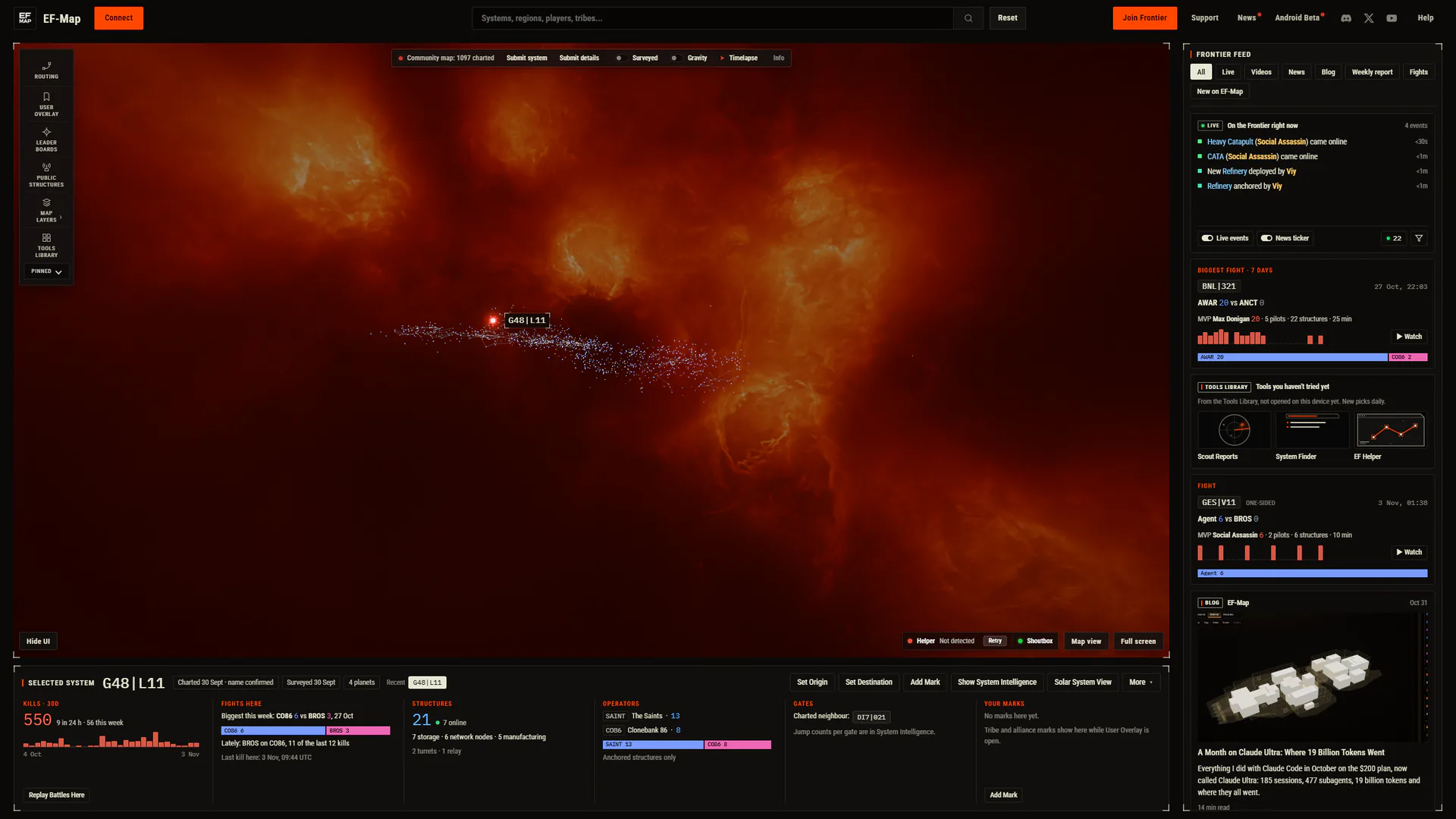
Watch view is a second layout of the EF-Map EVE Frontier map for big desktop windows. The map sits in a frame, a page for the selected system sits under it, and the Frontier feed runs down the right with live events, Killboard fights, EVE Frontier news and videos, the blog and the weekly State of the Frontier. It suits a 1440p, ultrawide or 4K monitor, or a second screen kept open beside the game, as one place to see what is happening in EVE Frontier right now. Map view, the full-window map, is unchanged and one key away.
The first button opens Watch view for one visit on any desktop browser window of at least 1280 × 720 pixels; a smaller window, a phone or an embedded map gets the normal map. The second opens the map in the view this browser remembers.
What Is Watch View?
Watch view is a layout, not a redesign and not a separate tool. The top bar becomes a masthead with Connect on the left, the system search in the centre and the toolbar on the right. The map sits in a framed box under it, and tool windows still open as the same floating windows, kept inside the frame. The live events ticker and the news ticker are not drawn under the map; their content and controls move into the feed. The EF Helper, Shoutbox and other status pills sit at the frame's bottom right beside the Map view and Full screen buttons, and Hide UI and the Node Fuel bar sit in its bottom-left corner.
Map view is unchanged apart from two buttons at the bottom right beside the EF-Map logo, Watch view and Full screen.
The System Page
Under the map is a page for the selected system; with nothing selected it asks you to pick one. The header shows the system name, its charted and surveyed tags, the planet count, recently selected systems and the same actions as the star's right-click menu: Set Origin, Set Destination, Add Mark, Show System Intelligence, Solar System View, and More for Add Waypoint, Avoid System, Replay Battles Here, Copy System ID and View on Datacore. Six cards follow, and they never sit empty.

Busy Systems
A system with kills in the last 30 days, a fight this cycle or indexed anchored structures shows its kills over 30 days with a per-day chart and Replay Battles Here, the fights there, its structures with an online count, the tribes that run them, its gates and your own marks.
Quiet Systems
A quiet system shows what is known about it, how far it is from you when EF Helper is connected, the nearest fights, open market and listed Smart Gate or catapult, its gate neighbours and how to help chart it.
Fog of War
The page follows Fog of War: only charted systems are named or measured, and owner labels and notes from Public Structures are never shown.
The Frontier Feed: EVE Frontier Live Events, Fights and News
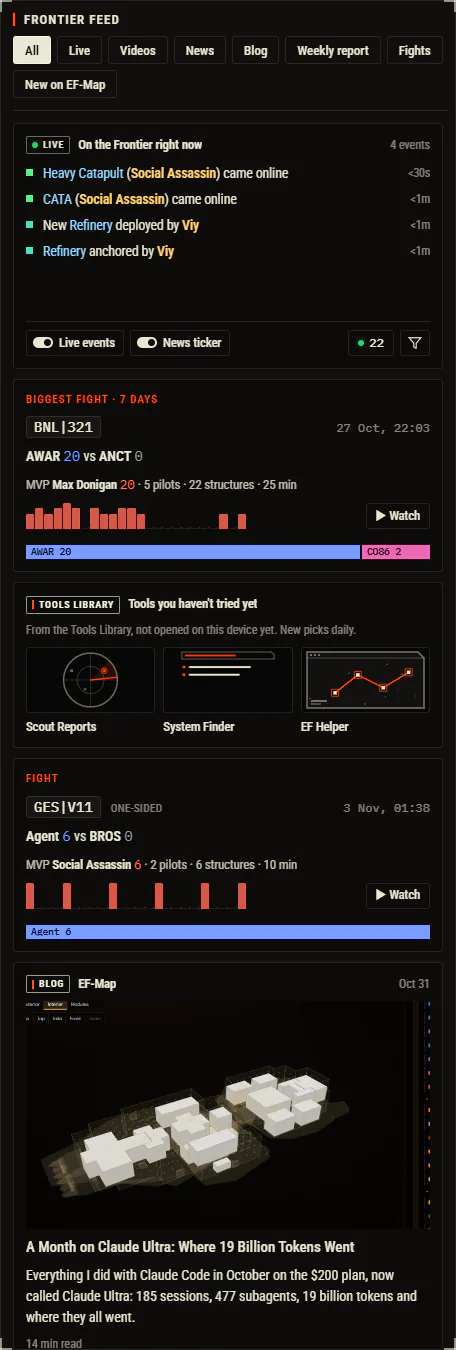
The feed down the right opens with the live card and the week's biggest fight, then runs newest first with the kinds mixed. Chips along the top filter it: All, Live, Videos, News, Blog, Weekly report, Fights and New on EF-Map. On All, cards of the same kind are kept apart where the next few items allow it.
| Card | Where it comes from | How often it updates |
|---|---|---|
| Live events | The same live connection the live events ticker uses, plus 72 hours of history kept in the browser | As events arrive |
| Fights | The Killboard timeline, using the Fights tab's own rule, with the biggest fight of the week pinned | Every 5 minutes |
| News and videos | EF-Map's news curator: official news, YouTube, Twitch, r/EVEFrontier and posts on X | Every 2 minutes while the feed is open |
| Blog | The EF-Map blog, with each post's own picture | Once per visit |
| Weekly report | State of the Frontier, newest issue | Once per visit |
| New on EF-Map | The What's new catalog, each with its Tools Library sketch | Once per visit |
| Tools you haven't tried | Three Tools Library tools this browser has not opened, picked daily | When you open one |
| Community map | The charted system count, with Submit system | On load |
News and video cards show the ticker's line or the source's headline, the source's own picture where it has one (a YouTube thumbnail, an official article's image or an X post's image), and, where one exists, a one to three sentence summary written once per item by Claude, an AI, from the linked source. Every number in a summary has to appear in the source, and Reddit users are never named. Turning the news ticker off hides its news and videos in the feed as well.
The live card keeps one height, so new events never move the cards below it. It also holds the controls that sit under the map in Map view: the ticker's filter, the Events window, Session Stats, and switches for live events and the news ticker.
Controls
- T switches between Watch view and Map view, except while you type in a field or a dialog is open.
- F toggles browser full screen in either view, and Esc also leaves it. In Flight Mode, F stays throttle-down.
- Buttons: in Map view, Watch view and Full screen sit at the bottom right beside the EF-Map logo; in Watch view, Map view and Full screen sit at the bottom right of the map frame.
- Remembered: the choice is kept in the browser, so pressing Map view once keeps you there.
- Links:
?view=watchopens Watch view for one visit and?view=mapforces Map view. Neither changes the remembered choice, and both combine with other parameters, for examplehttps://ef-map.com/?system={system_id}&view=watch. - Full-window moments: Battle Replay, the Killboard's kill replay, Timelapse, Cinematic Mode, Solar System View and Hide UI show the full-window map while they run and return to Watch view when they end.
Who Gets Watch View
- Any desktop window of at least 1280 × 720 CSS pixels gets the button, 1080p included; at 1080p the map frame is 1392 by 720. Once shown, it stays until the window is narrower than 1200 or shorter than 680 pixels, so a small resize does not flip the layout.
- A first visit on a 1440p-class monitor (a window of at least 2048 × 1080 pixels, such as a 1440p monitor at 100% or 125% display scaling, or larger) with no remembered choice starts in Watch view. Smaller windows start in Map view, with the button there when you want it.
- Phones, the mobile layout and embedded maps never get it, because the frame would leave too little room for the map itself.
- It is a layout, not a tool: it has no panel, no
?panel=link and no Tools Library entry.
Pop Out the Feed
The Frontier feed has a Pop out button next to its heading. Popping it moves the whole feed into an always-on-top floating window and switches the tab to Map view for the session; returning the feed, or closing the window, puts Watch view back. The Live Events card has its own button and pops out alone at its expanded 15-row size, while Watch view stays. Live rows keep arriving in both cases, and the window can stay above EVE Frontier in borderless windowed mode or sit on a second monitor. More on the Pop out page.
How Watch View Was Built
The build is written up on the blog in EF-Map Watch View: A YouTube-Style Layout for 1440p Monitors, covering where the feed's content comes from, what the news curator costs to run, and the pixel-by-pixel comparison that kept Map view unchanged.
Related Resources
- Blog: EF-Map Watch View, a YouTube-Style Layout for 1440p Monitors
- Pop out: keep the feed or any of 35 panels in an always-on-top window above the game
- Killboard: the indexed combat snapshots behind the feed's fight cards
- Battle Replay: where the pinned biggest fight of the week opens when you press Watch
- State of the Frontier: the weekly report in the feed
- All EF-Map Features
Frequently Asked Questions
Is there an EVE Frontier map layout for big monitors?
Yes. EF-Map's Watch view puts the map in a frame on any desktop browser window of at least 1280 by 720 pixels, with a page for the selected system under it and the Frontier feed down the right. A first visit on a 1440p-class monitor or larger starts in it, and T switches between Watch view and the full-window map.
Where can I see what is happening in EVE Frontier right now?
Watch view's Frontier feed mixes live universe events, Killboard fights, EVE Frontier news and videos with short summaries written by Claude, an AI, from the linked source, the EF-Map blog and the weekly State of the Frontier, with chips along the top to filter it.
Why don't I see the Watch view button?
The button appears on desktop browser windows of at least 1280 by 720 pixels. Phones, the mobile layout and embedded maps always get the normal map, because the frame would leave too little room for the map itself.
Can I keep the Frontier feed above the game?
Yes. The Frontier feed and the Live Events card each have a Pop out button that moves them into an always-on-top floating window, which stays above EVE Frontier in borderless windowed mode. See the Pop out page.